Showing posts with label SORT. Show all posts

Wednesday, 1 February 2017

SSIS Appetizer: XML source is already sorted

Case
I have a large XML file with Orders and Onderlines which I want to (merge) join into a new destination. To join the two outputs I need to order them, but the sort transformation takes too much time. Is there a faster alternative?
XML Source with two joined outputs


Solution
The solution is surprisingly quite simple: the outputs are already sorted and you only have to tell SSIS that (Similar to a source with order by in the query).

For XML files with multiple levels (first for orders and second for orderlines) like below, SSIS will create two output ports.
XML Sample


The outputs will have an extra bigint column which allows you to connect the orderlines to the correct order.
Two outputs with additional ID column


Instead of using these ID columns in the SORT transformations, you can also use the advanced editor of the XML source to tell SSIS that these columns are already sorted. Right click the XML source and choose 'Show Advanced Editor...'.
Show Advanced Editor...


Then go to the last page 'Input and Output Property' and select the Orderline output. In the properties of this output you can tell SSIS that the output is sorted.
Set IsSorted to true


Next expand OrderLine and then Output Columns and click on the additional ID column 'Order_Id'. In its properties locate the SortKeyPosition and change it from 0 to 1.
Set SortKeyPosition to 1


Repeat this for the second output called 'Order' and then close the advanced editor. If you still have the SORT transformations, you will notice the yellow triangle with the exclamation mark in it. It tells you that the data is already sorted and that you can remove the SORT transformations.
And if you edit the Data Flow Path and view the metadata you will see that the column is now sorted.
Sorted! Remove the SORT transformations!


Conclusion
The solution is very simple and perhaps this should have been the default sort key position anyway? It smells like a bug to me...
No sorts!


Friday, 22 April 2011

How to configure a Foreach Loop Container: Sorted File Enumerator

Case
I want my files to be process in filedate order, but the foreach loop doesn't provide a sort mechanism. Is there a way to order by filedate or filename?

Solution
The standard foreach loop container can't be sorted. See/vote this Feedback suggestion at Microsoft. It looks like it's standard ordered by filename. You could use this custom Sorted File Enumerator or you can accomplish it with a Script Task. This Script Task solution let's you order (asc or desc) by filename, creation date, last modified date or any other file property.

1) Control Flow
Drag a Script Task and a Foreach Loop Container to the Control Flow like the image below.
Sorted foreach loop container


2) Variables
Create three variables:
  1. startlocation (string) that indicates the folder wherein we gonna search for files. Fill it with a path like "d:\mySourceFiles\".
  2. dataset  (object) which we gonna use for communicating between the Script Task and the Foreach Loop Container.
  3. filepath (string) which is used for the variable mapping in the Foreach Loop Container.
The variables for this solution


3) Script Task
Select the startlocation as a readonly variable (we only read the path inside it) and select dataset as a readwritevariable (an ADO object will be stored in it).
Variables in Script Task


4) The Script
Copy the following script to your Script Task. Line 52 does the filtering and sorting. It is almost the same as a SQL query. See more examples on msdn.
// C# code 
using System;
using System.Data;
using System.IO;    // Added
using Microsoft.SqlServer.Dts.Runtime;
using System.Windows.Forms;

namespace ST_2e776e26793b45939128add3d850f70d.csproj
{
    [System.AddIn.AddIn("ScriptMain", Version = "1.0", Publisher = "", Description = "")]
    public partial class ScriptMain : Microsoft.SqlServer.Dts.Tasks.ScriptTask.VSTARTScriptObjectModelBase
    {

        #region VSTA generated code
        enum ScriptResults
        {
            Success = Microsoft.SqlServer.Dts.Runtime.DTSExecResult.Success,
            Failure = Microsoft.SqlServer.Dts.Runtime.DTSExecResult.Failure
        };
        #endregion

        public void Main()
        {
            // Create a dataset. I named it unsorted, because it's not yet sorted
            DataSet dsUnsorted = new DataSet();

            // Create a new table in the dataset
            DataTable filelistTable = dsUnsorted.Tables.Add();
            filelistTable.Columns.Add("FilePath", typeof(string));  // Filepath needed for connectionstring.
            filelistTable.Columns.Add("FileName", typeof(string));  // Filename used for sorting [optional]. 
            filelistTable.Columns.Add("FileDate", typeof(DateTime));// Filedate used for sorting [optional].

            // Get all files within the folder       
            string[] allFiles = Directory.GetFiles(Dts.Variables["User::startlocation"].Value.ToString());

            // Variable for storing file properties
            FileInfo fileInfo;

            // Loop through the files in the folder       
            foreach (string currentFile in allFiles)
            {
                // Fill fileInfo variable with file information         
                fileInfo = new FileInfo(currentFile);

                // Choose which the file properties you will use
                // Columns:            FilePath           FileName       FileDate
                filelistTable.Rows.Add(fileInfo.FullName, fileInfo.Name, fileInfo.CreationTime);
            }

            // Filtering on *.txt extension. Note: like uses * instead of %
            // Sorting the files on filename (or filedate: FileName DESC)
            DataRow[] rows = dsUnsorted.Tables[0].Select("FileName like '*.txt'", "FileDate ASC");

            // Create a new sorted dataset that the SSIS foreach loop uses.
            DataSet dsSorted = new DataSet();
            DataTable filelistTableSorted = dsSorted.Tables.Add();

            // Only interested in the filepath which is needed for the connectionstring 
            filelistTableSorted.Columns.Add("FilePath", typeof(string));

            // Fill the new dataset with the sorted rows.
            foreach (DataRow row in rows)
            {
                filelistTableSorted.Rows.Add(row["FilePath"].ToString());
            }

            // Store the dataset in the SSIS variable       
            Dts.Variables["dataset"].Value = dsSorted;

            Dts.TaskResult = (int)ScriptResults.Success;
        }
    }
}

or with VB.Net
' VB.Net Code
Imports System
Imports System.Data
Imports System.IO       ' Added
Imports System.Math
Imports Microsoft.SqlServer.Dts.Runtime

<System.AddIn.AddIn("ScriptMain", Version:="1.0", Publisher:="", Description:="")> _
<System.CLSCompliantAttribute(False)> _
Partial Public Class ScriptMain
 Inherits Microsoft.SqlServer.Dts.Tasks.ScriptTask.VSTARTScriptObjectModelBase

 Enum ScriptResults
  Success = Microsoft.SqlServer.Dts.Runtime.DTSExecResult.Success
  Failure = Microsoft.SqlServer.Dts.Runtime.DTSExecResult.Failure
 End Enum
 
    Public Sub Main()
        ' Create a dataset. I named it unsorted, because it's not yet sorted
        Dim dsUnsorted As New DataSet()

        ' Create a new table in the dataset
        Dim filelistTable As DataTable = dsUnsorted.Tables.Add()
        filelistTable.Columns.Add("FilePath", GetType(String))   ' Filepath needed for connectionstring.
        filelistTable.Columns.Add("FileName", GetType(String))   ' Filename used for sorting [optional]. 
        filelistTable.Columns.Add("FileDate", GetType(DateTime)) ' Filedate used for sorting [optional].

        ' Get all files within the folder       
        Dim allFiles As String() = Directory.GetFiles(Dts.Variables("User::startlocation").Value.ToString())

        ' Variable for storing file properties
        Dim fileInfo As FileInfo

        ' Loop through the files in the folder       
        For Each currentFile As String In allFiles
            ' Fill fileInfo variable with file information         
            fileInfo = New FileInfo(currentFile)

            ' Choose which the file properties you will use
            ' Columns:            FilePath           FileName       FileDate
            filelistTable.Rows.Add(fileInfo.FullName, fileInfo.Name, fileInfo.CreationTime)
        Next

        ' Filtering on *.txt extension. Note: like uses * instead of %
        ' Sorting the files on filename (or filedate: FileName DESC)
        Dim rows As DataRow() = dsUnsorted.Tables(0).[Select]("FileName like '*.txt'", "FileDate ASC")

        ' Create a new sorted dataset that the SSIS foreach loop uses.
        Dim dsSorted As New DataSet()
        Dim filelistTableSorted As DataTable = dsSorted.Tables.Add()

        ' Only interested in the filepath which is needed for the connectionstring 
        filelistTableSorted.Columns.Add("FilePath", GetType(String))

        ' Fill the new dataset with the sorted rows.
        For Each row As DataRow In rows
            filelistTableSorted.Rows.Add(row("FilePath").ToString())
        Next

        ' Store the dataset in the SSIS variable       
        Dts.Variables("dataset").Value = dsSorted
        Dts.TaskResult = ScriptResults.Success
    End Sub

End Class


5) Foreach Loop Container
Edit the Foreach Loop Container and change the enumerator on the Collection tab to Foreach ADO Enumerator. This means that it will loop through an ADO object. Select the dataset variable as the ADO object source variable. This is the variable that contains the sorted dataset from the Script Task.
Foreach ADO Enumerator


6) Variable Mappings
Map the variable filepath to Index 0. This will store the path in this variable.
Variable mapping


7) Test the result
Now you can add your own tasks to the Foreach Loop container and use the variable filepath in the expression for Connection String. I added a simple Script Task for testing that shows the filepath in a MessageBox.
The Result: a sorted Foreach Loop Container


Note: there are other ways to accomplish this, like a first Foreach Loop Container that adds all filenames to a database table and then a second Foreach Loop Container to loop through that database table. Let me know what your solution is.

Example package 2008

Update: I have created a Custom Foreach Sorted File Enumerator if you don't like scripting.

Thursday, 24 March 2011

Sorting in SQL vs sorting in SSIS

Case
When I join two flows in SSIS, the flows need to be sorted. According to the Performance Best Practices I try to sort them in the source components because that's better for performance. Ofcource that's not always possible, for instance when your source is a flat file, and then you need the SSIS sort component.

But watch out when combining these two sort methods. Because SSIS and SQL don't sort the same way! The sort of SSIS is case sensitive and the sort in SQL Server is case insensitive. See the result when you combine these two. This will result in unwanted situations and missing joins. Is there a solution?
Click to enlarge


Solution
This has to do with the different sorting collations. SSIS uses the Windows collation (Case-Sensitive) and SQL Server uses SQL collation (Case-Insensitive, by default). You can either adjust the SQL sort to SSIS or the SSIS sort to SQL.

Adjust SQL Sort to SSIS: Case-Sensitive ORDER BY
You can solve this by changing the source query of the sorted source:
-- Notice the extra COLLATE
SELECT     myStringColumn
FROM       myTable
ORDER BY   myStringColumn
COLLATE    Latin1_General_CS_AS_WS


The suffix CS_AS_WS stands for Case-sensitive, accent-sensitive, kana-insensitive, width-sensitive. See the compleet suffix list at msdn. This new query will result in a correct join in SSIS.
Both the same sort


Adjust SSIS Sort to SQL: Case-Insensitive Sort Transformation
Important: This solution has one side affect. The merge join will also be Case Insensitive!

1) Source
In the sorted OLE DB source you already used the advanced editor to tell SSIS this source is sorted with an ORDER BY in the query, but you now also need to tell SSIS that it is sorted Case-Insensitive by setting the ComparisonFlags property to Ignore case. Note: this doesn't change the actual sorting. You are just telling SSIS how it is sorted.
Indicate that source is sorted Case-Insensitive


2) Sort
In the SORT Transformation you also need to set the Comparison Flags property to Ignore case. Note: This will change the actual sorting.

Setting the Comparison Flags property to Ignore case


3) Result
Now both flows are sorted the same and the Merge Join works as a Case-Insensitive Inner join (similar to a T-SQL INNER JOIN).
Like a T-SQL Inner Join


Thursday, 23 December 2010

Sorting packages

Case
Microsoft finally added sorting in Managment Studio 2008 (SSMS) and Visual Studio 2008, but for those poor developers who are still working with 2005 (me, a couple of weeks ago) where it wasn't a standard feature, there are couple of solutions to accomplish an alphabetical sorted list of packages.
Sorting in Visual Studio 2008


Solution
Sorting in Managment Studio 2005
The sorting is done by a store procedure named sp_dts_listpackages. You can alter this procedure to accomplish a sorted list. The bottommost row has been added. Your can find the stored procedure in de MSDB database under System Stored Procedures.
USE [msdb]
GO
SET ANSI_NULLS ON
GO
SET QUOTED_IDENTIFIER OFF
GO
ALTER PROCEDURE [dbo].[sp_dts_listpackages]
  @folderid uniqueidentifier
AS
  SELECT
      name,
      id,
      description,
      createdate,
      folderid,
      datalength(packagedata),
      vermajor,
      verminor,
      verbuild,
      vercomments,
      verid
  FROM
      sysdtspackages90
  WHERE
      [folderid] = @folderid
  ORDER BY NAME -- Added this row

That's better!


Sorting in Visual Studio 2005
You can do that manually by editing the .dtproj file and sort the xml nodes, but someone made a tool for it which adds some handy buttons to Visual Studio:


The tool can be found at:
http://www.sqldbatips.com/showarticle.asp?ID=78

Wednesday, 22 December 2010

Performance Best Practices

Case
A client of mine had some performance issues with couple of SSIS packages and because they lack basic SSIS knowledge, they just upgraded there server with more memory. Finally, after 32GB of memory, they stopped upgrading and start reviewing there packages.

Solution
There are a lot of blogs about SSIS Best Practices (for instance: SSIS junkie). Here is the top 10 of the easy to implement but very effective ones I showed them to 'upgrade' their packages instead of the memory.

1) Unnecessary columns
Select only the columns that you need in the pipeline to reduce buffer size and reduce OnWarning events at execution time. SSIS even helps you by showing the unnecessary ones in the Progress/Execution Results Tab: [DTS.Pipeline] Warning: The output column "Address1" (16161) on output "Output0" (16155) and component "CRM clients" (16139) is not subsequently used in the Data Flow task. Removing this unused output column can increase Data Flow task performance.
Unnecessary columns from a flat file


2) Use queries instead of tables
Following on the unnecessary columns, always use a SQL statement in an OLE DB Source component or (Fuzzy) Lookup component rather than just selecting a table. Selecting a table is akin to "SELECT *..." which is universally recognised as bad practice.
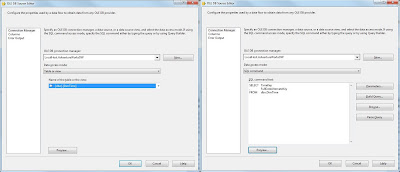
OLE DB Source, use SQL Command instead of Table


Lookup, use SQL Command instead of Table


3) Use caching in your LOOKUP
Make sure that the result of your lookup is unique, otherwise SSIS cannot cache the query and executes it for each record passing the lookup component. SSIS will warn you for this in the Progress/Execution Results Tab: [Lookup Time Dimension [605]] Warning: The component "Lookup Time Dimension" (605) encountered duplicate reference key values when caching reference data. This error occurs in Full Cache mode only. Either remove the duplicate key values, or change the cache mode to PARTIAL or NO_CACHE.

Watch out that you are not grabbing too many resources in the lookup. A couple of million records is probably not a good idea. And new is SSIS 2008 is that you can reuse your lookup cache in an other lookup.
SSIS 2008: Cache


4) Filter in source
Where possible filter your data in the Source Adapter rather than filter the data using a Conditional Split transform component. This will make your data flow perform quicker because the unnecessary records don't go through the pipeline.
Filter in OLE DB Source, filter data in source


5) Sort in source
A sort with SQL Server is faster than the sort in SSIS, partly because SSIS does the sort in memory. So it pays to move the sort to a source component (where possible). Note you have to set IsSorted=TRUE on the source adapter output, but setting this value does not perform a sort operation; it only indicates that the data it sorted. After that change the SortKeyPosition of all output columns that are sorted.
Advanced Editor for Source, sort data in source


6) Join in source
Where possible, join data in the Source Adapter rather than using the Merge Join component. SQL Server does it faster than SSIS. But watch out that you are not making to complex queries because that will worsen the readability.

Unnecessary Join and Sorts


7) Group in source
Where possible, aggregate your data in the Source Adapter rather than using the Aggregate component. SQL Server does it faster than SSIS.

Unnecessary Sorts, Join and Aggregate


8) Beware of Non-blocking, Semi-blocking and Fully-blocking components in general
The dataflow consists of three types of transformations: Non-blocking, Semi-blocking and Fully-blocking. And as the names suggests, use Semi-blocking and Fully-blocking components rarly to optimize your packages. Jorg Klein has written a interesting article about it with a list of which component is non-, semi- or fully blocking.

A summary of how to recognize these three types:

Non-blocking
Semi-blocking
Fully-blocking
Synchronous/asynchronous
Synchronous
Asynchronous
Asynchronous
Number of rows in equal to rows out
True
Usually False
Usually False
Collect all input before the can output
False
False
True
New buffer created?
False
True
True
New thread created?
False
Usually True
True
Find more information about (a)synchronous at Microsoft.


9) High Volumes of Data and indexes
Loading high volumes of data on a table with clustered and non-clustered indexes could take a lot of time.
The most important thing to verify is if all indexes are really used. SQL Server 2005 and 2008 provide information about index usage with to views: sys.dm_db_index_operational_stats and sys.dm_db_index_usage_stats. Drop all rarely used and unused indexes first. Experience teaches that there are often a lot of unnecessary indexes. If you are absolute sure that all remaining indexes are necessary you can drop all indexes before loading the data and to recreate them afterwards. The performance profit of that depends on the number of records. The higher the number of records the more profit you gain.
Drop and recreate indexes


10) SQL Server Destination Adapter vs OLE DB Destination Adapter
If your target database is a local SQL server database, the SQL Server Destination Adapter will perform much better than the OLE DB Destination Adapter. However the SQL Server Destination Adapter works only on a local machine and via Windows security. You have to be absolute sure that your database stays local in the future otherwise you mapping will not work when moving the database.


Note: this is not a complete list, but just a top 10 of easy to implement but very effective ones. Tell me if you have items that should be in the top 10 of Performance Best Practices!

Note: Besides the Performance Best Practice there also is a Development Best Practice.
Related Posts Plugin for WordPress, Blogger...