Showing posts with label PERFORMANCE. Show all posts

Saturday, 7 June 2014

Is the Row Sampling Transformation fully blocking?

Case
Is the Row Sampling Transformation a (fully) blocking component or a non-blocking component? Various blogs and forums disagree on each other. Is it possible to see it in SSIS?

Solution
By adding some logging to the package you can see the Pipeline Execution Trees of your Data Flow. This will tell you whether a transformation creates a new buffer. When it creates a new buffer then the component is a-synchronously / blocking.


1) Add logging
Open your package and go to the SSIS menu and choose Logging...
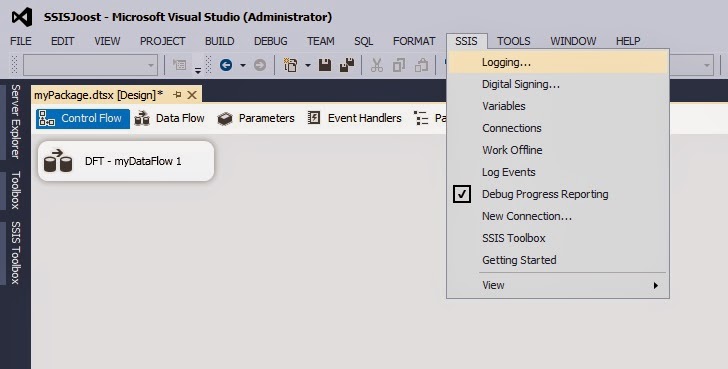
SSIS Menu - Logging...


2) SQL logging
For this example I selected SQL Server logging, pressed the add button and then selected a Connection Manager.
SQL Server logging


Next check the Data Flow Task (1) and the enable the SQL Server Log (2) for it. After that go to the Details tab (3).
Enable logging for the Data Flow Task


In the details tab scroll down and select PipelineExecutionTrees. Then click on the advanced button.
Logging Details


In the advanced section make sure that the MessageText is checked. In this column you will find the execution trees text. After that click OK to close the logging window.
Check MessageText


3) Run and check log
Run the package and then check the log. In the column Message you can find the Execution Trees.
SQL Server Logging. Check message column.


Now check these examples and see which is blocking. Multiple paths means that there is a transformation that creates new buffers. The last example is the Row Sampling:
Plain Data Flow: 1 path - No blocking

Data Flow with Sort: 2 paths - Sort is blocking

Data Flow with Percentage Sampling: 1 path - No blocking

Data Flow with Row Sampling: 3 paths - Row Sampling is blocking


4) Partial Blocking or Fully Blocking?
Unfortunately you can't see in the log whether the task is partially blocking (like union or merge join) or fully blocking (like sort and aggregate), but you can see it in the Data Flow Task when running your package in Visual Studio (BIDS/SSDT). The Row Sampling Transformation is fully blocking because it apparently need all data before it sends data to its output. So try not to use it unnecessarily.

Row Sampling is Fully Blocking


The Row Sampling isn't just doing a TOP X, but it spreads the sampled rows over all buffers. Because you don't know the number of records or buffers that is coming you have to have all rows before you can pick randomly X records from the whole set.

An alternative (with less random rows) could be to use a Script Component that adds a row number and then use a Conditional Split to select the first X rows (and perhaps combine it with a modulo expression like: Rownumber % 3 == 0 && Rownumber <= 3000). The Conditional Split is a non-blocking component. Note: this isn't necessarily faster. Check it first for your case!

So why is the Percentage Sampling not blocking? It just takes the same percentage of each buffer and can therefore be synchronous.


Confirmed by Mister SSIS himself!

Sunday, 14 April 2013

Performance Best Practice: Flat File (Fast) Parse

Here are some tips to speed up the reading of flat files within the SSIS data flow. They are especially handy for importing large flat files (or when you merge join your small flat file to a large dataset). Start, where possible, by reading the files from a fast drive (a Solid State Disk / preferably not used by Windows or SQL Server) instead of some share.

Minimum datatype
By default all columns are string 50 in a Flat File Connection Manager. To get as many rows in a data flow buffer it's important to use a minimum data type for each column. And if it's for example an integer column then parse it to an integer in the Flat File Connection Manager instead of parsing it in the data flow with a Data Conversion or Derived Column Transformation. Otherwise you end up with two columns in your buffer instead of one.

A good start is to use the Suggest Types button in the Flat File Connection Manager editor. It will scan a couple of rows from your flat file and come up with a minimum data type.

Suggest Types


Unused columns
In the Flat File Connection Manager it's impossible to skip columns that you don't need, but to minimize pressure on performance you should not parse unneeded columns. Parsing/converting is expensive. Just leave it string. In the Flat File Source editor you can uncheck the unneeded columns.
Leave it string, don't parse.


Uncheck unneeded flat file columns


Fast Parse
If you have a so called 'trusted' source (for example a database export) then you don't have to worry for mistakes in the data types. To speed up the performance you can enable fast parse for all non-string columns. But for date columns you have to be sure that the format is correct. Try using the ISO format YYYY-MM-DD.
You can enable fast parse in the Advanced Editor of the Flat File Source. Right click it and choose "Show Advanced Editor...".
Show Advanced Editor...


Then go to the Input and Output Properties tab and then to the Output Columns. Select a non-string column and set the FastParse property to true. Repeat this for all non-string columns.
Enable FastParse


Bulk Insert Task
If your destination is a SQL Server table and you don't need data transformations then you might want to consider/test the Bulk Insert Task as a alternative for the Data Flow Task.

Summary
Minimum data types
Parse in Connection Manager
No unnecessary parsing
Fast Parse

More info: Blog of Jamie Thomson and Henk van der Valk or MSDN

Saturday, 13 April 2013

Performance Best Practice: more rows per buffer

SSIS uses buffers to transport a set of rows through the data flow task. In general the less buffers you need to transport all rows from the source to the destination the faster it is.

You can compare a buffer going through a data flow, with a fire bucket going through a medieval line of people trying to extinguish a fire.

Buffers going through a data flow


You can extinguish the fire faster by adding an extra line of people (parallel process) or my making the buckets larger (but not too large, otherwise they can't lift the buckets).


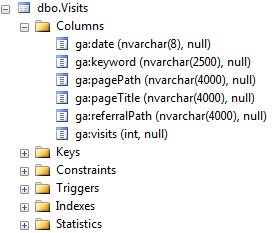
For this example I use a table with Google Analytics data from my blog staged in a database table.
Table with quite large columns


Changing Buffer Size
By default the buffer size is 10 Megabytes (1024 * 1024 * 10 = 10,485,760 bytes). You can adjust this size for each Data Flow Task (see Data Flow Task Property DefaultBufferSize).
DefaultBufferSize 64KB <> 100MB


I have a Package that pauses between buffers with a Script Component. This allows me to see how many records there are in one buffer. In my case 1 row of Google Analytics data is about 29000 bytes and if I run my Data Flow Task I can see that 360 rows of data fit in to my 10MB buffer.
360 rows = ±10MB


By making my buffer twice the size you will see that the number of rows in my buffer doubles. You can change the buffer size up to 100MB, but you have to remember that there are multiple buffers going through your data flow at the same time. If you don't have enough memory to fit all those buffers, then SSIS will swap memory to disk making it very slow! So only use bigger buckets if you can lift them...
721 rows = ± 20MB


Adjust row size
Never use a table as a datasource! Selecting a table is akin to "SELECT *..." which is universally recognized as bad practice(*). Always use a query. This allows you to skip unwanted columns and rows.

Unchecking "Available External Columns" at the Columns pane of the OLE DB Source Editor will prevent unwanted column in the buffer, but the data will have to go from SQL Server to SSIS. Removing unwanted column with a query will reduce the number of network packets going from a SQL Server machine to your SSIS machine.

Use query instead of whole table


Let's remove an unwanted column to see the effect. Removing the nvarchar(4000) column [ga:referralPath] will reduce the total recordsize from 29030 to 21028 bytes. Now 497 rows instead of 320 will fit in my 10MB buffer.
Removing unwanted columns => more rows in buffer


Adjust Column Size
Often column are just unnecessary too big in the source. If you can't change the source then you could change it in the source query with a CAST or CONVERT. For example the nvarchar(4000) column for page titles is way to big. My titles are not that long and the characters should fit in varchar. Let's CAST it to varchar(255) and see how many extra rows will fit in the buffer.
Resizing datatypes => more rows in buffer


Now we have 787 rows instead of 320 rows in the 10mb buffer. That should speed up this package!

Note: if you change datatypes in an existing source query, then you have to uncheck and check the changed columns in the Columns pane of the OLE DB Source editor. This will refresh the metadata in the data flow. Otherwise you will get an error like: Validation error. DFT - Visits: DFT - Visits: Column "ga:pageTitle" cannot convert between unicode and non-unicode string data types.
Uncheck and check changed columns


Add WHERE clause
Don't use a Conditional Split Transformation to remove records after an database table source. Instead use a WHERE clause in your source query. The Conditional Split is a so called Magic Transformation. It will only visually hide records instead of removing them from the buffer. And the records are unnecessary transported from SQL Server to SSIS.
Add WHERE clause instead of Conditional Split


RunInOptimizedMode
This is a Data Flow Task property that, if set to true, will 'remove' unused columns and unused transformations to improve performance. Default value is true, but this property isn't the holy grail and you shouldn't rely on it while developing your packages.
RunInOptimizedMode


Enable logging on Data Flow Task
There are some events that you could log to get information about the buffer:
User:BufferSizeTuning: This will tell you how many rows there were in the buffer.
  • Rows in buffer type 0 would cause a buffer size greater than the configured maximum. There will be only 787 rows in buffers of this type.
  • Rows in buffer type 0 would cause a buffer size greater than the configured maximum. There will be only 1538 rows in buffers of this type.
User:PipelineInitialization: This will tell you something about which settings are used.
  • The default buffer size is 10485760 bytes.
  • Buffers will have 10000 rows by default.
  • The data flow will not remove unused components because its RunInOptimizedMode property is set to false.
BufferSizeTuning and PipelineInitialization


Performance Counters
SSIS comes with a set of performance counters that you can use to monitor the performance of the Data Flow Task. More about that in a later blog. For now see msdn.

Summary
Optimize Buffer Size
Use Source Query
Adjust Row Size
Adjust Column Size
Use Where clause


More info: Blog of Matt Masson, *Jamie Thomson, SQLCAT and MSDN

Tuesday, 9 April 2013

Performance Best Practice: Network Packet Size

Network
If your SSIS package gets its data from a SQL Server database located on an other machine, then the data of your query will go from the SQL Server machine over the network to your SSIS machine. This is done in small network packets with a default size of 4096 bytes (4 kilobytes).

Buffers
The Data Flow Task uses buffers to transport multiple rows of data through the data flow. Its default size is 10485760 bytes (10 megabytes). This means you need 2560 network packets (10485760 / 4096) to fill one buffer. By increasing the size of the packets you need less packets to fill that buffer. With the maximum size of 32768 bytes (32 kilobytes) you only need 320 network packets (10485760 / 32768) to fill one buffer.
This could, depending on the quality of your network, improve the performance significant (For poor performing networks you need to resend a lot of packets, making large packets inefficient).
Default Max Buffer Size: 10 MB


You can adjust the default size of 4096 bytes within SQL Server. However I strongly recommend not to change that in SQL Server. You should add the network packet size to the connectionstring to override this default value.
Do not change within SQL Server


OLE DB:
Data Source=mySqlServer\SQL2012;Initial Catalog=myDatabase;Provider=SQLNCLI11.1;Integrated Security=SSPI;Auto Translate=False;Packet Size=8192;

ADO.NET
Data Source=mySqlServer\sql2012;Initial Catalog=myDatabase;Integrated Security=True;Packet Size=10000;Application Name=SSIS-package;


SSIS OLE DB Connection Manager
Within SSIS you can change this value in the OLE DB Connection Manager or directly in the Connectionstring property. The maximum value for the network packet size is 32768 bytes, but the property is zero-based, so the max number is 32767. The value 0 means use the SQL Server default.

Network Packet Size property OLE DB


SSIS ADO.Net Connection Manager
The ADO.Net Connection Manager has a default of 8000 bytes. this one isn't zero-based, so its max value is 32768.
Network Packet Size property ADO.Net


Note 1: if you are using package configurations on the connectionstring property then don't forget to add this value to the connectionstring in your config table/file.
Note 2: you could enable jumbo frames on your network to increase performance even more, but you should consult a network specialist for that.

More info: Blog of Henk van der Valk, SQLCAT and MSDN.

Monday, 8 April 2013

SQL Saturday #221


The powerpoint (in Dutch!) of my SQL Saturday presentation about SSIS Performance Tuning is available for download. Added some screenshots for most demo's and a couple of URL's for additional information.

:-)


SQL Rally 2013
And some really good news... SQL Saturday in autumn 2013 will be replaced by SQL Rally. Three days instead of one day! SQL Rally will be hosted in Amsterdam on November 6-8 2013.

Wednesday, 20 June 2012

Balanced Data Distributor for 2012 has been released

Last year Microsoft released the Balanced Data Distributor for 2008 and today they released the 2012 version. This transform takes a single input and distributes the incoming rows to one or more outputs uniformly via multi-threading.


BDD in SSIS 2012

Saturday, 9 July 2011

Balanced Data Distributor

A few weeks ago Microsoft quietly released a new Data Flow transformation for SSIS 2008 and 2008 R2: Balanced Data Distributor. This transform takes a single input and distributes the incoming rows to one or more outputs uniformly via multi-threading.

UPDATE: 2012 version has been released

How does it work? If you load a large file in to a staging table it looks something like the flow below. Out of the box SSIS doesn't process this via multi-threading; one flow, one thread.
Single flow


The Balanced Data Distributor introduces parallelism in the data flow and multi-processor and multi-core servers will profit from that new feature. SSIS can now distribute the work over multiple threads which makes your data flow a lot faster.

Balanced Data Distributor


When do you use this new Balanced Data Distributor?
- You have a large amount of data coming in
- You can read faster than you can process it in your data flow
- The destination supports parallelism (a flat file target wont work because it gets locked)
- Your package runs on a multi-processor and multi-core server
More info about that and the bottlenecks in this MSDN Blog.

If your destination doesn't support parallelism or you want for example to aggregate all data then you can use a Union All. Now only part of the flow is multi-threading.
Part of the data flow is multi-threading.


Alternatives for Balanced Data Distributor.
There are a few constructions already available in SSIS to get parallelism.
1) A Conditional Split with a modulo expression to split the rows into multiple streams
2) A Script Component with multiple outputs and a modulo construction in .Net
Conditional Split with a Modulo expression


Example of a modulo expression


For more details about parallelism with a Condition Split can be found in this great blog article from fellow Dutchman Henk van der Valk.

Conclusion
A nice start to get parallelism into SSIS, but there already where some possibilities. Hopefully this component wont be necessary in the future versions of SSIS. An automatic form of multi-threading would be nice!

Thursday, 13 January 2011

Lookup Slowly Changing Dimension type II

Case
I have a slowly changing dimension type II (with a start and end date). How do I create a working lookup in my dataflow?

Solution
There are roughly three options:
A) Override lookup query with custom query
B) Split dimension in separate days with datetime dimension
C) Split dimension in separate days in second table

Let’s say we have a fact for employee number 123456789 with fact date 12 December 2010 and we want to know the right EmployeeId.

Sample of Dim_Employee table:
EmpoyeeIdEmpoyeeNumberFirstnameLastNameDepartmentStartdateEnddate
1123456789JohnGilbertDepartmentX2004-01-012005-12-31
12123456789JohnGilbertDepartmentZ2006-01-012010-12-31
19123456789JohnGilbertDepartmentA2011-01-019999-12-31

Sample of the dataflow:
Partial dataflow


The lookup should return 12 as EmployeeId for this example.

Solution A
Override lookup query with custom query

A1) Query
Let’s have a closer look at the lookup query. Select the EmpoyeeId, EmpoyeeNumber, Startdate and Enddate from the employee dimension table (don't just select the whole table: see Performance Best Practices).
Lookup Query


A2) Select columns
Select the input columns to map the lookup columns. Now you see the problem: The factdate can either map the Startdate or Enddate. There is no between here. For now map the EmployeeNumber and the Factdate according to the sample and select EmployeeId as a new Column.
Column Mappings


A3) Custom Query
This step is a little different for SSIS 2005 and SSIS 2008 (and newer). Goto the Advanced Tab.
SSIS 2008:
In SSIS 2008 this tab is completely disabled with the message: This page is not used when Full cache mode is selected. To overcome this goto to the General tab and select Partial cache instead of Full Cache. Now you can modify the SQL Statement with the following query:
--Query with parameters
SELECT * 
FROM   (SELECT  EmployeeId
       ,        EmployeeNumber
       ,        StartDate
       ,        EndDate
       FROM     Dim_Employee) [refTable]
WHERE  [refTable].[EmployeeNumber] = ?
AND    [refTable].[StartDate] <= ?
AND    [refTable].[EndDate] > ?
Modify SQL Statement  in SSIS 2008


SSIS 2005
For SSIS 2005: just Enable memory restriction and enter the query.
Modify SQL Statement in SSIS 2005


A4) Parameters
Now Push the Parameters button on the advanced tab to enter the mappings. Select FactDate (the date column in the source table) for both Parameter1 and Parameter2.
Parameters


A5) Result
Now your lookup is ready for testing.
The result: EmployeeId 12


The big big downside for this method is the lack of caching. You cannot use full cache. It will work for a small number records, but when the numbers grow, it will completely slow down your dataflow.

Solution B
Split dimension in separate days with datetime dimension
This solution is only possible if you have a time dimension.

B1) Query
Join the employee dimension and the time dimension, using between logic in the ON clause. This will result in a row for every dimension member for each day. 
--Query with join
SELECT      Dim_Employee.EmployeeId
,           Dim_Employee.EmployeeNumber
,           Dim_Time.Date
FROM        Dim_Employee
INNER JOIN  Dim_Time
            ON Dim_Time.Date
            BETWEEN Dim_Employee.StartDate
            AND Dim_Employee.EndDate
The new query, join with the time dimension


B2) Select columns
Select the input columns to map the lookup columns. Unlike option A, the mapping is easy.
Column mapping


B3) Result
Now you can test the dataflow and see that the result is simulair to Solution A. But we have to narrow down the number of records to improve the performance, because there are over 2500 records for this one employee.

There are a couple of options. If your source data contain only records for the the current year you could change the query to:
--Only current year
SELECT      Dim_Employee.EmployeeId
,           Dim_Employee.EmployeeNumber
,           Dim_Time.Date
FROM        Dim_Employee
INNER JOIN  Dim_Time
            ON Dim_Time.Date
            BETWEEN Dim_Employee.StartDate
            AND Dim_Employee.EndDate
WHERE       YEAR(Dim_Time.Date) = YEAR(GETDATE())       

Or you can use a MIN(date) query on your source data and use that in the where clause.
--Use minimum
SELECT      Dim_Employee.EmployeeId
,           Dim_Employee.EmployeeNumber
,           Dim_Time.Date
FROM        Dim_Employee
INNER JOIN  Dim_Time
            ON Dim_Time.Date
            BETWEEN Dim_Employee.StartDate
            AND Dim_Employee.EndDate
WHERE       Dim_Time.Date >= (SELECT  MIN(FactDate)
                              FROM    YourStaginTable))

And there are probably some more advanced queries to narrow down the number of records.

Solution C
Split dimension in separate days in second table.

If you don't have a time dimension table, you use a script (or query) to split all dimensions in separate days and copy those to a second table. Then use that second table in your lookup. And of cource try to narrow down the number of reconds just like in Solution B.

Conclusion
Every solution has it's pros and cons. The best solution for you depends on a number of things such as the number of records in your dimension and date spread in the fact records. Test it! Let me know if you found an other solution for your SCD Type II dimension lookup.

Alternatives without the Lookup Transformation
For large volumes of data there are a couple of alternatives:
1) Use a Merge Join Transformation instead of a lookup (join without the dates) and add a Conditional Split Transformation behind it that checks whether the date of the fact table is between the two dates of the dimension table.
2) The fasted option is to use a source query of an OleDB Source Component and do the between query of Solution A in SQL Server.

* Update *
Also see this Script Component solution from Matt Masson.

Friday, 7 January 2011

Slowly Changing Dimension Alternatives

Case
The Slowly Changing Dimension component works fine for small dimensions, but performance is very poor for slightly bigger dimensions. Is there an alternative?

Solution
There is a request on the Microsoft site to improve SCD in SQL 2012 which you can support, but intil then... some alternatives:

A) There is an open source project named SSIS Dimension Merge CSD Component which performs better (100x faster according the developers).

B) There is a third party table difference component that does the same trick, but faster. Downside is the yearly $400,-. An other (free) third party component is the Konesans Checksum Transformation which you can use to accomplish a SCD. And we made our own Checksum Transformation.

C) There is the TSQL Merge statement which has been added to Sql Server 2008. It Performs insert, update, or delete operations on a target table based on the results of a join with a source table.

D) And you can use the standard ssis components (lookups) to accomplish a faster SCD.

Lets elaborate option D to see the difference between the standard Slowly Changing Dimension Component and the lookups. Case: 15481 clients in a dimension table. Process same clients again with 100 new clients and 128 changed.

Slowly Changing Dimension Component solution
The standard solution with the Slowly Changing Dimension component looks something like this and takes about 25 seconds on average to complete on my laptop.
Slowly Changing Dimension component


Lookups solution
The solution with two lookups looks something like this and takes less than 1,5 seconds on average to complete. The first lookup only compares the business key. If the business key from the source doesn't exist in the dimension table, then it's a new record/client. All other records go to the second lookup which compares all attributes (incl the business key) to the dimension table. When no match is found, the client has been updated.
Two lookups


This performs very well if there are not too many updates. If I change the number of updates from 128 to 15422 records, the whole proces takes around two minutes with this method, which is only slightly faster than the standard SCD component.

Alternative for lot's of updates
An other alternative is to change the Update Clients to an insert statement which inserts all updated records into a second table. A lot of single update statements slow down the process. A fastload insert takes only a fragment of the time.
Change update to insert (into an other table)


After that you can use a batch-update to update all changed clients.
Execute SQL Statement


This alternative takes only six seconds in total. The batch-update query looks something like this.
--Batch update
UPDATE  [Dim_Client]
SET     [Dim_Client].Title          = [Dim_Client2].Title,
        [Dim_Client].FirstName      = [Dim_Client2].FirstName,
        [Dim_Client].LastName       = [Dim_Client2].LastName
FROM    [Dim_Client], [Dim_Client2]
WHERE   [Dim_Client].BusinessKey    = [Dim_Client2].BusinessKey

So there are alternatives for the standard SCD component. Which is best? That depends on the situation (are third party/open source dll's alowed on the production servers, how many updates do you expect, etc.). Let me know if you have an other alternative...

* Update: TSQL Merge added (suggested by Koen)*
Related Posts Plugin for WordPress, Blogger...