Showing posts with label EXPRESSIONS. Show all posts

Friday, 12 September 2014

Foreach loop with *.xls wildcard also returns *.xlsx files

Case
I have a Foreach Loop Container with a file enumerator. The wildcard is *.xls, but it also returns *.xlsx files. How do I prevent that?

Loop through *.xls also includes xlsx files


My xls loop includes xlsx and xlsm files


Solution
This is actually similar to the DIR command in a DOS/Command Prompt.
All xls files? (/b is to remove my Dutch header/footer)


The workaround is simple. And if you don't like the solution then you could use my Sorted File Enumerator that also supports regular expression wildcards.

1) Dummy
Add an empty/dummy task or Sequence Container in your Foreach Loop Container. And connect it to your first task.

Empty/collapsed Sequence Container added


2) Precedence Constraint Expression
Add an expression on the Precedence Constraint between the dummy and your first task. It should look something like LOWER(RIGHT(@[User::FilePath], 4)) == ".xls" (replace the variablename and/or file extension).

Expression with LOWER and RIGHT to check the file extension


3) The result
Now test the package (Replace my example Script Task with your own tasks).
The result: only two xls files and no xlsx or xlsm files


Monday, 1 September 2014

XSD location hardcoded in XML source

Case
The path of the XSD file in the XML Source component is hardcoded, but the path on my production environment is different than my development environment. The XML source doesn't have expressions. How do I make this XSD path configurable?
XML Source Connection Manager Page
without Connection Managers


Solution
Unfortunately the XML source component does lack some very basic functionalities like the use of a Connection Manager (although ironically it's called the Connection Manager page). The source can use variables as input, but there isn't such option for the XSD file.
XML Task can use Connection Managers


1) Find Expressions
The XML Source Component doesn't support expressions, but the Data Flow Task itself does. Go to the properties of the Data Flow Task and locate the expressions and click on the ... button

Select Data Flow Task and press F4 to get properties


2) Select Property
Locate the XMLSchemaDefinition property of your XML Source in the Property Expression Editor and add an expression on it by clicking on the ... button.
Property Expression Editor


3) Add Expression
Now you can either replace its value by a variable or a parameter if you use SSIS 2012 and above.
Expression Builder


That's it. Now you have a workaround for the absence of a real Connection Manager. An alternative could be to use a Script Component as XML source or an XML file with an inline XSD schema.

Friday, 1 August 2014

Add Expression Builder to custom task

Case
I have created a custom task, but I would like to add the built-in Expression Builder to it. How do you do that?

Solution
It is possible, but it's an unsupported feature, which means you have no guarantees that it will still work after the next update of SSIS. For this example I used my Custom Task example and added two references and a couple of code lines. You can download that code and add the code below to the UI project.
Custom Task with built-in Expression Builder


1) References
For the Expression Builder window you need to add a reference to Microsoft.DataTransformationServices.Controls which is located in the GAC:
C:\Windows\Microsoft.NET\assembly\GAC_MSIL\Microsoft.DataTransformationServices.Controls\v4.0_11.0.0.0__89845dcd8080cc91\Microsoft.DataTransformationServices.Controls.DLL
And for validating the expression you need a reference to Microsoft.SqlServer.DTSRuntimeWrap which is also located in the GAC (however not in MSIL):
C:\Windows\Microsoft.NET\assembly\GAC_32\Microsoft.SqlServer.DTSRuntimeWrap\v4.0_11.0.0.0__89845dcd8080cc91\Microsoft.SqlServer.DTSRuntimeWrap.dll
 C:\Windows\Microsoft.NET\assembly\GAC_64\Microsoft.SqlServer.DTSRuntimeWrap\v4.0_11.0.0.0__89845dcd8080cc91\Microsoft.SqlServer.DTSRuntimeWrap.dll


2) Usings
I added two extra usings for the Expression Builder.

Two extra usings


3) Controls
I added a button (for opening expression builder) a readonly textbox (for showing the expression) and a label (for showing the evaluated expression) to my editor.
Extra controls in the editor


4) The code
I added an onclick event on my button and added the following code (simplified version).
// C# code
private void btnExpression_Click(object sender, EventArgs e)
{
 try
 {
  // Create an expression builder popup and make sure the expressions can be evaluated as a string:
  // Or change it if you want boolean to System.Boolean, etc. Last property is the textbox containing
  // the expression that you want to edit.
  using (var expressionBuilder = ExpressionBuilder.Instantiate(_taskHost.Variables,
                 _taskHost.VariableDispenser,
                 Type.GetType("System.String"),
                 txtExpression.Text))
  {
   // Open the window / dialog with expression builder
   if (expressionBuilder.ShowDialog() == DialogResult.OK)
   {
    // If pressed OK then get the created expression
    // and put it in a textbox.
    txtExpression.Text = expressionBuilder.Expression;
    lblExpressionEvaluated.Text = "";

    // Create object to evaluate the expression
    Wrapper.ExpressionEvaluator evalutor = new Wrapper.ExpressionEvaluator();

    // Add the expression
    evalutor.Expression = txtExpression.Text;

    // Object for storing the evaluated expression
    object result = null;

    try
    {
     // Evalute the expression and store it in the result object
     evalutor.Evaluate(DtsConvert.GetExtendedInterface(_taskHost.VariableDispenser), out result, false);
    }
    catch (Exception ex)
    {
     // Store error message in label
     // Perhaps a little useless in this example because the expression builder window
     // already validated the expression. But you could also make the textbox readable
     // and change the expression there (without opening the expression builder window)
     lblExpressionEvaluated.Text = ex.Message;
    }

    // If the Expression contains some error, the "result" will be <null>.
    if (result != null)
    {
     // Add evaluated expression to label
     lblExpressionEvaluated.Text = result.ToString();
    }
   }
  }
 }
 catch (Exception ex)
 {
  MessageBox.Show(ex.Message);
 }
}

5) Runtime
Now you can store that expression in a property and retrieve in on runtime. On runtime you can evaluate the expression with the same code as above.

Tuesday, 13 May 2014

Continue Loop after error - Part II

Case
I used the propagate variable trick to continue a loop on error. That works within the package, but the parent package calling the package with the loop still fails.
Child succeeds, parent fails


Solution
This is by design according Microsoft. The workaround they suggest is setting the DisableEventHandlers property of the Execute Package task to True. This should ignore all errors in the child package. Below here is an alternative solution to only ignore expected errors. Don't hesitate to post your own solution in the comments.

A parent package variable will be filled by the child package in case of an unexpected error. In the parent package it will be used to throw an error when it's filled.

1) Variable - Parent Package
Add a string variable in the parent package called childError.
Add string variable


2) OnError - Child Package
Go to the child package where you used the propagate variable 'trick' and add an OnError event handler on package level. Go to Event Handlers tab. Make sure the package is selected as Executable and OnError as Event handler. Then click on the link in the middle of the page: Click here to create an 'OnError' event handler for the executable 'Child1'.
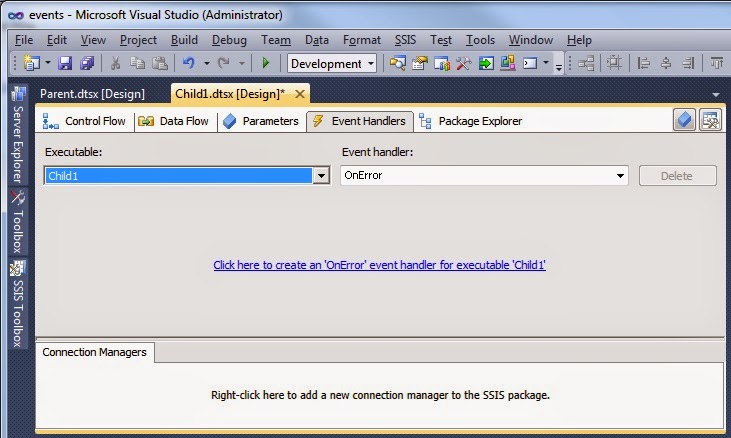
OnError event handler for package


3a) Script Task - Child Package
Add a Script Task to the event handler and give it a suitable name. Then edit it and add the System variables ErrorCode and ErrorDescription as read only variables and type the name of the parent package in the read write box. You can't select it because it's only known at runtime.
Add the variables


3b) The Script
Hit the edit button and copy the code of my main method to your main method. The example code is in C#. For a VB.Net version you can use this conversion tool.
// C# Code
using System;
using System.Data;
using Microsoft.SqlServer.Dts.Runtime;
using System.Windows.Forms;

namespace ST_ace2311e5a4c4bbb98101cd54888c7c9
{
    [Microsoft.SqlServer.Dts.Tasks.ScriptTask.SSISScriptTaskEntryPointAttribute]
    public partial class ScriptMain : Microsoft.SqlServer.Dts.Tasks.ScriptTask.VSTARTScriptObjectModelBase
    {
        public void Main()
        {
            // Fill parent package variables with error message from this child package.
            Dts.Variables["User::ChildError"].Value = Dts.Variables["System::ErrorCode"].Value.ToString() + " - " + Dts.Variables["System::ErrorDescription"].Value.ToString();
            Dts.TaskResult = (int)ScriptResults.Success;
        }

        #region ScriptResults declaration
        /// 
        /// This enum provides a convenient shorthand within the scope of this class for setting the
        /// result of the script.
        /// 
        /// This code was generated automatically.
        /// 
        enum ScriptResults
        {
            Success = Microsoft.SqlServer.Dts.Runtime.DTSExecResult.Success,
            Failure = Microsoft.SqlServer.Dts.Runtime.DTSExecResult.Failure
        };
        #endregion

 }
}

4) Propagate - Parent Package
Go back to the parent package and add an empty event handler on the Execute Package Task so that it won't fail if the child package has an error. Go to the event handlers. Select the Execute Package Task as executable and select OnError as eventhandler and then create the event handler by clicking on the link in the middle of the screen: "Click here to create an 'OnError' event handler for executable 'EPT - Child1'.

Next go to the variables pane and hit the Variable Grid Option button to also show system variables (SSIS 2008 has a different button). Then find the system variable Propagate and set it to false.

Last step is to add an annotation in the empty event handler to explain why it's empty.
OnError Event Handler


Show system variables for SSIS 2008


5a) Script Task - Parent Package
Go back to the Control Flow of your parent package and add a Script Task to fire an error. Connect it to the Execute Package Task with an expression only on the precedence constraint:
@[User::ChildError] != ""
Fire Child Error


5b) The Script
Edit the Script Task and add the string variable ChildError as read-only variable. After that hit the edit button and copy the content of my main method to your main method. The example code is in C#. For a VB.Net version you can use this conversion tool.
Read-only variable


// C# Code
using System;
using System.Data;
using Microsoft.SqlServer.Dts.Runtime;
using System.Windows.Forms;

namespace ST_7b522ca79c9f4428a233a100bfc66e6e
{
    [Microsoft.SqlServer.Dts.Tasks.ScriptTask.SSISScriptTaskEntryPointAttribute]
    public partial class ScriptMain : Microsoft.SqlServer.Dts.Tasks.ScriptTask.VSTARTScriptObjectModelBase
    {
        public void Main()
        {
            // Fire error with error message from child package and fail script task
            Dts.Events.FireError(0, "Child package", "Child package error: " + Dts.Variables["User::ChildError"].Value.ToString(), string.Empty, 0);
            Dts.TaskResult = (int)ScriptResults.Failure;
        }

        #region ScriptResults declaration
        /// 
        /// This enum provides a convenient shorthand within the scope of this class for setting the
        /// result of the script.
        /// 
        /// This code was generated automatically.
        /// 
        enum ScriptResults
        {
            Success = Microsoft.SqlServer.Dts.Runtime.DTSExecResult.Success,
            Failure = Microsoft.SqlServer.Dts.Runtime.DTSExecResult.Failure
        };
        #endregion

 }
}


6) Precedence Contraint - Parent Package
If there is no unexpected error in the child package then we continue with the next task(s). Each task that is connected to the Execute Package Task with a Success Precedence Constraint should be changed to an expression: @[User::ChildError] == ""
Continue if there are no unexpected errors in the child package


7) The result
I added a Script Task in the child package that always fails to simulate an unexpected error. On the second run there where only expected errors in the loop, so the child package was successful. In the parent package there is still a red cross, but it continues without (unexpected) errors.
The result

Saturday, 6 July 2013

Custom SSIS Component: Multiple Expressions Task

To change the value of a variable during runtime you need an expression or a Script Task. The expression isn't very flexible and the Script Task requires .Net knowledge. That's why Microsoft introduced the Expression Task in SSIS 2012. It enables you to set the value of one variable during runtime. Downside is that it isn't available for 2008 and you can only set one variable at a time.

Multiple Expressions Task


We, me and my colleague Marc Potters, have created a new cool task to set the values of multiple variables in a single task. You can a either use a value or the Expression Builder.
Enter a value or use an expression


Or use the SSIS Expression Builder


You can also create variables within the task via a context menu.
Create variables


Other features of version 0.1:
- Clearly shows faulty expressions, but you can close the editor without losing it.
- Create new rows to set the value of existing variables.
- Delete rows via the context menu
- Indicator to show that an expression is used


Disclaimer
THIS SOFTWARE IS PROVIDED BY THE COPYRIGHT HOLDERS AND CONTRIBUTORS "AS IS" AND ANY EXPRESS OR IMPLIED WARRANTIES, INCLUDING, BUT NOT LIMITED TO, THE IMPLIED WARRANTIES OF MERCHANTABILITY AND FITNESS FOR A PARTICULAR PURPOSE ARE DISCLAIMED. IN NO EVENT SHALL THE COPYRIGHT OWNER OR CONTRIBUTORS BE LIABLE FOR ANY DIRECT, INDIRECT, INCIDENTAL, SPECIAL, EXEMPLARY, OR CONSEQUENTIAL DAMAGES (INCLUDING, BUT NOT LIMITED TO, PROCUREMENT OF SUBSTITUTE GOODS OR SERVICES; LOSS OF USE, DATA, OR PROFITS; OR BUSINESS INTERRUPTION) HOWEVER CAUSED AND ON ANY THEORY OF LIABILITY, WHETHER IN CONTRACT, STRICT LIABILITY, OR TORT (INCLUDING NEGLIGENCE OR OTHERWISE) ARISING IN ANY WAY OUT OF THE USE OF THIS SOFTWARE, EVEN IF ADVISED OF THE POSSIBILITY OF SUCH DAMAGE.

Downloads:
You can download a SSIS 2008 and 2012 version on the download page.

Installation
The installer registers the DLL in the GAC and copies it to the task folder of SSIS (example: C:\Program Files\Microsoft SQL Server\100\DTS\Tasks\). After that you have to close Visual Studio/BIDS because it caches the GAC on startup. Restarting SQL Server Data Tools is not necessary.

How add the task the the toolbox (2008 only)
When you open a SSIS project in Visual Studio/Bids, right click the toolbox and choose "Choose Items...". After this Visual Studio will be busy for a couple of seconds!
Right click toolbox


When the Choose Toolbox Items window appears, go to the SSIS Control Flow Items and search for the newly installed Multiple Expressions Task and select it. Click ok to finish.
Choose Toolbox Items


Now the new task will appear in the toolbox. Ready to use! Have fun.
New task added


Bugs or feature suggestions
Please contact me or leave a comment if you have any suggestions or found a bug in this Custom task.


Friday, 3 June 2011

Often used SSIS expressions

Here is a list of often used SSIS expression which I will expand regularly. You can leave your own handy expression in the comments. Or let me know if you have a better or alternative expression for the expressions below.

And because the expression builder of SSIS is quite worthless, the opensource addon SSIS Expression Editor & Tester could be very useful.

Strings


Filename from pathstring

This expression reverses the string to find the position of the last \ and uses that number (minus 1) in the Right expression:
  • RIGHT([FilePath],FINDSTRING(REVERSE([FilePath]),"\\",1) - 1)
  • RIGHT(@[User::FilePath],FINDSTRING(REVERSE(@[User::FilePath]),"\\",1) - 1)
Folderpath from pathstring
This expressions reverses the string to find the position of the last \ and deduct that number of the total length. After that you can use that number in a substring.
  • SUBSTRING(@[User::FilePath], 1,
    LEN(@[User::FilePath]) - FINDSTRING(REVERSE(@[User::FilePath] ), "\\" ,1 ) + 1
    )
Foldername from the pathstring
This expression finds the last and second last / in the filepath and uses the those positions to find the foldername.
  • SUBSTRING(@[User::FilePath],
    LEN(@[User::FilePath]) - FINDSTRING(REVERSE(@[User::FilePath]),"\\",2) + 2,
    (LEN(@[User::FilePath]) - FINDSTRING(REVERSE(@[User::FilePath]),"\\",1)) - (LEN(@[User::FilePath]) - FINDSTRING(REVERSE(@[User::FilePath]),"\\",2)) - 1
    )
 In SSIS 2012 it's a lot easier/shorter with the token expression:
  • TOKEN(@[User::FilePath],"\\",TOKENCOUNT(@[User::FilePath],"\\") - 1)
 
Default value for an empty string
If you want to give a default value for empty columns, you can check the length or you can check for NULL or you can even check both:
  • LEN([STRING_COLUMN]) == 0 ? "default value" : [STRING_COLUMN]
  • ISNULL([STRING_COLUMN]) ? "default value" : [STRING_COLUMN]
  • ISNULL([STRING_COLUMN]) || LEN([STRING_COLUMN]) == 0 ? "default" : [STRING_COLUMN]

Numbers
Leading zeros
These two expression will add up to 5 leading zeros to a number. So "123" becomes "00123":
  • RIGHT(("00000" + [STRING_COLUMN]), 5)
  • REPLICATE("0", 5 - LEN([STRING_COLUMN])) + [STRING_COLUMN]
Note: you will have to convert a numeric field to string field first with DT_WSTR or DT_STR.

Datetimes
Date from datetime
If you want to remove the time element in a datetime object, you should cast it to DT_DBDATE. But because that datatype is very inconvenient to use, you should cast it back to the original datatype. That will set the time to 0:00.
  • (DT_DATE)(DT_DBDATE)@[User::datetimeVariable]
  • (DT_DATE)(DT_DBDATE)[datetimeColumn]
  • (DT_DBTIMESTAMP)(DT_DBDATE)GETDATE()

Time from datetime
If you want to remove the date element in a datetime object, you should cast it to DT_DBTIME. And optional cast it to a string.
  • (DT_STR,8,1252)(DT_DBTIME)@[User::datetimeVariable]
  • (DT_STR,8,1252)(DT_DBTIME)[datetimeColumn]
  • (DT_STR,8,1252)(DT_DBTIME)GETDATE()

First day of the current month
If you want to get the first day of the current month, you take the current datetime and deduct the current day number (minus 1). Optional you can remove the time part:
  • DATEADD("d", -DAY(GETDATE()) + 1, GETDATE())
  • (DT_DBTIMESTAMP)(DT_DBDATE)DATEADD("d", -DAY(GETDATE()) + 1, GETDATE())

Last dat of the current month
If you want to get the last day of the current month, you add 1 month and deduct the current day number. Optional you can remove the time part:
  • DATEADD("d", -DAY(GETDATE()), DATEADD("m", 1, GETDATE()))
  • (DT_DBTIMESTAMP)(DT_DBDATE)DATEADD("d", -DAY(GETDATE()), DATEADD("m", 1, GETDATE()))
And if you realy want the last second of the current month 30-06-2011 23:59:59
  • DATEADD("s", -1,DATEADD("d", -DAY(GETDATE()) + 1, DATEADD("m", 1, (DT_DBTIMESTAMP)(DT_DBDATE)GETDATE())))

Weeknumber of the month (see)
1-june-2012 is weeknumber 23 in the year, but weeknumber 1 of the month june 2012.
  • (DATEPART("ww",[YourDate]) - DATEPART("ww",DATEADD("d", -DAY([YourDate]) + 1, [YourDate]))) + 1
Related Posts Plugin for WordPress, Blogger...